
最新的Microsoft 365 Security Administration - MS-500免費考試真題
You have a Microsoft 365 E5 tenant that contains three users named User1, User2, and User3.
You need to assign roles or role groups to the users as shown in the following table.

What should you use to assign a role or role group to each user? To answer, drag the appropriate tools to the correct roles or role groups. Each tool may be used once, more than once, or not at all. You may need to drag the split bar between panes or scroll to view content.
NOTE: Each correct selection is worth one point.

You need to assign roles or role groups to the users as shown in the following table.
What should you use to assign a role or role group to each user? To answer, drag the appropriate tools to the correct roles or role groups. Each tool may be used once, more than once, or not at all. You may need to drag the split bar between panes or scroll to view content.
NOTE: Each correct selection is worth one point.
正確答案:

Explanation
Graphical user interface, text, application, chat or text message Description automatically generated

Reference:
https://docs.microsoft.com/en-us/microsoft-365/security/office-365-security/permissions-in-the-security-and-com
You discover that Microsoft SharePoint content is shared with users from multiple domains.
You need to allow sharing invitations to be sent only to users in an email domain named contoso.com.
To complete this task, sign in to the Microsoft 365 portal.
You need to allow sharing invitations to be sent only to users in an email domain named contoso.com.
To complete this task, sign in to the Microsoft 365 portal.
正確答案:
See explanation below.
Explanation
You need to configure the Sharing options in the SharePoint admin center.
Go to the SharePoint admin Center.
Navigate to Policies > Sharing.
In the External Sharing section, click on More external sharing settings.
Tick the Limit external sharing by domain checkbox.
Click the Add domains button.
Select the Allow only specific domains option and type in the domain contoso.com.
Click Save to save the changes.
Explanation
You need to configure the Sharing options in the SharePoint admin center.
Go to the SharePoint admin Center.
Navigate to Policies > Sharing.
In the External Sharing section, click on More external sharing settings.
Tick the Limit external sharing by domain checkbox.
Click the Add domains button.
Select the Allow only specific domains option and type in the domain contoso.com.
Click Save to save the changes.
Refer to exhibit.

Microsoft Defender for Endpoint contains the incidents shown in the following table.

For each of the following statements, select yes if the statement is true. Otherwise. select No.
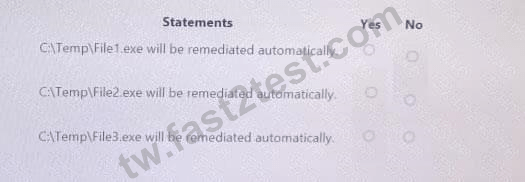
Microsoft Defender for Endpoint contains the incidents shown in the following table.
For each of the following statements, select yes if the statement is true. Otherwise. select No.
正確答案:

Explanation
Graphical user interface, application Description automatically generated

You have a Microsoft 365 E5 subscription that contains a security group named Group1 and the users shown in the following table.

You assign the Compliance Manager roles to the users as shown in the following table.

You add two assessments to Compliance Manager as shown in the following exhibit.

For each of the following statements, select Yes if the statement is true. Otherwise, select No.
NOTE: Each correct selection is worth one point.

You assign the Compliance Manager roles to the users as shown in the following table.
You add two assessments to Compliance Manager as shown in the following exhibit.
For each of the following statements, select Yes if the statement is true. Otherwise, select No.
NOTE: Each correct selection is worth one point.
正確答案:

Explanation
Text Description automatically generated

Reference:
https://docs.microsoft.com/en-us/microsoft-365/compliance/compliance-manager-assessments?view=o365-world
You have a Microsoft 365 subscription.
You are creating a retention policy named Retention1 as shown in the following exhibit.

You apply Retention1 to SharePoint sites and OneDrive accounts.
Use the drop-down menus to select the answer choice that completes each statement based on the information presented in the graphic.
NOTE: Each correct selection is worth one point.

You are creating a retention policy named Retention1 as shown in the following exhibit.
You apply Retention1 to SharePoint sites and OneDrive accounts.
Use the drop-down menus to select the answer choice that completes each statement based on the information presented in the graphic.
NOTE: Each correct selection is worth one point.
正確答案:

Explanation

You have a Microsoft 365 tenant.
You need to implement a policy to enforce the following requirements:
* If a user uses a Windows 10 device that is NOT hybrid Azure Active Directory (Azure AD) joined, the user must be allowed to connect to Microsoft SharePoint Online only from a web browser. I he user must be prevented from downloading files or syncing files from SharePoint Online.
* If a user uses a Windows 10 device that is hybrid Azure AD joined, the user must be able connect to SharePoint Online from any client application, download files, and sync files.
What should you create?
You need to implement a policy to enforce the following requirements:
* If a user uses a Windows 10 device that is NOT hybrid Azure Active Directory (Azure AD) joined, the user must be allowed to connect to Microsoft SharePoint Online only from a web browser. I he user must be prevented from downloading files or syncing files from SharePoint Online.
* If a user uses a Windows 10 device that is hybrid Azure AD joined, the user must be able connect to SharePoint Online from any client application, download files, and sync files.
What should you create?
正確答案: D
You have an Azure Active Directory (Azure AD) tenant named contoso.com that contains the users shown in the following table.

The User Administrator role is configured in Azure AD Privileged Identity Management (PIM) as shown in the following exhibit.

You make User4 eligible for the User Administrator role.
For each of the following statements, select Yes if the statement is true. Otherwise, select No.
NOTE: Each correct selection is worth one point.

The User Administrator role is configured in Azure AD Privileged Identity Management (PIM) as shown in the following exhibit.
You make User4 eligible for the User Administrator role.
For each of the following statements, select Yes if the statement is true. Otherwise, select No.
NOTE: Each correct selection is worth one point.
正確答案:

Explanation
Y,Y,Y
https://docs.microsoft.com/en-us/azure/active-directory/privileged-identity-management/pim-email-notifications
Please wait while the virtual machine loads. Once loaded, you may proceed to the lab section. This may take a few minutes, and the wait time will not be deducted from your overall test time.
When the Next button is available, click it to access the lab section. In this section, you will perform a set of tasks in a live environment. While most functionality will be available to you as it would be in a live environment, some functionality (e.g., copy and paste, ability to navigate to external websites) will not be possible by design.
Scoring is based on the outcome of performing the tasks stated in the lab. In other words, it doesn't matter how you accomplish the task, if you successfully perform it, you will earn credit for that task.
Labs are not timed separately, and this exam may more than one lab that you must complete. You can use as much time as you would like to complete each lab. But, you should manage your time appropriately to ensure that you are able to complete the lab(s) and all other sections of the exam in the time provided.
Please note that once you submit your work by clicking the Next button within a lab, you will NOT be able to return to the lab.
Username and password

Use the following login credentials as needed:
To enter your username, place your cursor in the Sign in box and click on the username below.
To enter your password, place your cursor in the Enter password box and click on the password below.
Microsoft 365 Username:
admin@[email protected]
Microsoft 365 Password: #HSP.ug?$p6un
If the Microsoft 365 portal does not load successfully in the browser, press CTRL-K to reload the portal in a new browser tab.
The following information is for technical support only:
Lab instance: 11122308


You need to protect against phishing attacks. The solution must meet the following requirements:
Phishing email messages must be quarantined if the messages are sent from a spoofed domain.
As many phishing email messages as possible must be identified.
The solution must apply to the current SMTP domain names and any domain names added later.
To complete this task, sign in to the Microsoft 365 admin center.
When the Next button is available, click it to access the lab section. In this section, you will perform a set of tasks in a live environment. While most functionality will be available to you as it would be in a live environment, some functionality (e.g., copy and paste, ability to navigate to external websites) will not be possible by design.
Scoring is based on the outcome of performing the tasks stated in the lab. In other words, it doesn't matter how you accomplish the task, if you successfully perform it, you will earn credit for that task.
Labs are not timed separately, and this exam may more than one lab that you must complete. You can use as much time as you would like to complete each lab. But, you should manage your time appropriately to ensure that you are able to complete the lab(s) and all other sections of the exam in the time provided.
Please note that once you submit your work by clicking the Next button within a lab, you will NOT be able to return to the lab.
Username and password
Use the following login credentials as needed:
To enter your username, place your cursor in the Sign in box and click on the username below.
To enter your password, place your cursor in the Enter password box and click on the password below.
Microsoft 365 Username:
admin@[email protected]
Microsoft 365 Password: #HSP.ug?$p6un
If the Microsoft 365 portal does not load successfully in the browser, press CTRL-K to reload the portal in a new browser tab.
The following information is for technical support only:
Lab instance: 11122308
You need to protect against phishing attacks. The solution must meet the following requirements:
Phishing email messages must be quarantined if the messages are sent from a spoofed domain.
As many phishing email messages as possible must be identified.
The solution must apply to the current SMTP domain names and any domain names added later.
To complete this task, sign in to the Microsoft 365 admin center.
正確答案:
See explanation below.
Explanation
1. After signing in to the Microsoft 365 admin center, select Security, Threat Management, Policy, then ATP Anti-phishing.
2. Select Default Policy to refine it.
3. In the Impersonation section, select Edit.
4. Go to Add domains to protect and select the toggle to automatically include the domains you own.
5. Go to Actions, open the drop-down If email is sent by an impersonated user, and choose the Quarantine message action.
Open the drop-down If email is sent by an impersonated domain and choose the Quarantine message action.
6. Select Turn on impersonation safety tips. Choose whether tips should be provided to users when the system detects impersonated users, domains, or unusual characters. Select Save.
7. Select Mailbox intelligence and verify that it's turned on. This allows your email to be more efficient by learning usage patterns.
8. Choose Add trusted senders and domains. Here you can add email addresses or domains that shouldn't be classified as an impersonation.
9. Choose Review your settings, make sure everything is correct, select Save, then Close.
Reference:
https://support.office.com/en-us/article/protect-against-phishing-attempts-in-microsoft-365-86c425e1-1686-430a
https://docs.microsoft.com/en-us/microsoft-365/security/office-365-security/set-up-anti-phishing-policies?view=
Explanation
1. After signing in to the Microsoft 365 admin center, select Security, Threat Management, Policy, then ATP Anti-phishing.
2. Select Default Policy to refine it.
3. In the Impersonation section, select Edit.
4. Go to Add domains to protect and select the toggle to automatically include the domains you own.
5. Go to Actions, open the drop-down If email is sent by an impersonated user, and choose the Quarantine message action.
Open the drop-down If email is sent by an impersonated domain and choose the Quarantine message action.
6. Select Turn on impersonation safety tips. Choose whether tips should be provided to users when the system detects impersonated users, domains, or unusual characters. Select Save.
7. Select Mailbox intelligence and verify that it's turned on. This allows your email to be more efficient by learning usage patterns.
8. Choose Add trusted senders and domains. Here you can add email addresses or domains that shouldn't be classified as an impersonation.
9. Choose Review your settings, make sure everything is correct, select Save, then Close.
Reference:
https://support.office.com/en-us/article/protect-against-phishing-attempts-in-microsoft-365-86c425e1-1686-430a
https://docs.microsoft.com/en-us/microsoft-365/security/office-365-security/set-up-anti-phishing-policies?view=
You have a hybrid Microsoft 365 environment. All computers run Windows 10 and are managed by using Microsoft Intune.
You need to create a Microsoft Azure Active Directory (Azure AD) conditional access policy that will allow only Windows 10 computers marked as compliant to establish a VPN connection to the on-premises network.
What should you do first?
You need to create a Microsoft Azure Active Directory (Azure AD) conditional access policy that will allow only Windows 10 computers marked as compliant to establish a VPN connection to the on-premises network.
What should you do first?
正確答案: D
說明:(僅 Fast2test 成員可見)
You have an on-premises Hyper-V infrastructure that contains the following:
An Active Directory domain
A domain controller named Server1
A member server named Server2
A security policy specifies that Server1 cannot connect to the Internet. Server2 can connect to the Internet.
You need to implement Azure Advanced Threat Protection (ATP) to monitor the security of the domain.
What should you configure on each server? To answer, drag the appropriate components to the correct servers.
Each component may only be used once, more than once, or not at all. You may need to drag the split bar between panes or scroll to view content.
NOTE: Each correct selection is worth one point.

7
An Active Directory domain
A domain controller named Server1
A member server named Server2
A security policy specifies that Server1 cannot connect to the Internet. Server2 can connect to the Internet.
You need to implement Azure Advanced Threat Protection (ATP) to monitor the security of the domain.
What should you configure on each server? To answer, drag the appropriate components to the correct servers.
Each component may only be used once, more than once, or not at all. You may need to drag the split bar between panes or scroll to view content.
NOTE: Each correct selection is worth one point.
7
正確答案:

Explanation

Note: This question is part of a series of questions that present the same scenario. Each question in the series contains a unique solution that might meet the stated goals. Some questions sets might have more than one correct solution, while others might not have a correct solution.
After you answer a question in this section, you will NOT be able to return to it. As a result, these questions will not appear in the review screen.
You have an on-premises Active Directory domain named contoso.com.
You install and run Azure AD Connect on a server named Server1 that runs Windows Server.
You need to view Azure AD Connect events.
You use the Security event log on Server1.
Does that meet the goal?
After you answer a question in this section, you will NOT be able to return to it. As a result, these questions will not appear in the review screen.
You have an on-premises Active Directory domain named contoso.com.
You install and run Azure AD Connect on a server named Server1 that runs Windows Server.
You need to view Azure AD Connect events.
You use the Security event log on Server1.
Does that meet the goal?
正確答案: A
說明:(僅 Fast2test 成員可見)